File Sync Is Not a Backup: Dropbox, OneDrive, Google Drive and the Versioning Question
TL;DR
“My files are in Dropbox, so they are backed up” is one of the most common and most expensive misunderstandings in personal IT. Sync is very good at one thing: keeping an identical copy of your files somewhere else, so a dead laptop costs you nothing. But sync replicates whatever you do to a file, including the things you did not mean to do. Delete a folder and it deletes everywhere. Ransomware encrypts your documents and the encrypted versions upload cheerfully over the good ones.
That is the standard line, and it is mostly right. But it gets repeated as though the matter were settled, when it is actually a live argument with sensible people on both sides, made murkier by vendors who sell sync and backup under the same brand and sometimes the same button. So this guide lays out both cases rather than just the slogan.
- Sync copies the current state. A backup keeps history you can go back to. They are different jobs, and every major vendor sells both.
- Sync does genuinely cover hardware loss: dead disk, stolen laptop, house fire. That is real protection, and it is why the confusion exists.
- It only covers it while it is actually running, and sync stalls quietly. A client stuck for weeks looks much like a working one, which is how people reload a machine and discover the cloud copy stopped a month ago.
- Version history is the strongest thing sync offers, and it is not nothing. Against ordinary encrypt-in-place ransomware it usually works, and plenty of people have recovered exactly that way.
- Against it: version history is mutable, it expires, and there is a documented attack chain that deletes it outright.
- Where this guide lands: the useful question is not “sync or backup” but can something you do not control delete this copy? That points at immutability. Reasonable people weigh it differently, and the closing section explains when the other view is defensible.
Now for the more technical explanation
This is the same argument as system rollback is not a backup, one layer further out. There, the trap was mistaking an on-device rewind for a backup. Here it is subtler, because sync genuinely does put your data on other hardware, which is the part people latch onto. It clears the bar that rollback fails. It just falls at a different one.
What sync is actually for
A sync client’s job is to make two locations match. You change a file, it uploads. You delete a file, it deletes. You rename a folder on your phone and the Mac agrees within seconds. That is the entire product, and it is genuinely excellent at it.
Notice what that means: the cloud copy is not an archive, it is a mirror. A mirror reflects whatever is in front of it, including a hammer.
Where sync really does protect you
Being honest about this matters, because the “sync is not backup” line gets repeated so hard that people overcorrect and assume it is worthless.
If your laptop’s SSD dies tonight, your synced files are fine. If it is stolen at the airport, fine. If the house floods, fine. Sync puts a current copy on hardware you do not own, in a building you have never visited, which is the off-site leg of the 3-2-1 rule. That is real, and it is more than most people had fifteen years ago.
So the accurate framing is not “sync is useless.” It is: sync protects against losing the device, and does much less about losing the data.
The four things it does not protect you from
1. Deletion. You delete a folder you thought was junk. Sync does what it is told and removes it from the cloud and from every other device. The only thing between you and permanent loss is the provider’s trash, which is a clock, not a vault.
2. Corruption. A file gets mangled by a crashing app or a failing drive sector. The mangled version is a change, so it syncs. Now both copies are broken. This one is quiet, which makes it worse: you often find out months later when you open the file.
3. Ransomware. This is the big one, and version history complicates it enough to deserve its own section below.
4. Account compromise. Sync is one account holding everything. Someone who phishes that password reaches every file on every device at once, can delete it all, and (as we will see) can purge the version history too. A drive in your desk drawer does not care that your password leaked. Which is one of several reasons for phishing-resistant MFA.
⚠ Caution: ransomware syncs faster than you can react
Ransomware encrypts the files it can reach, and your sync folder is a normal, mounted, writable folder, so it is very much reachable. The sync client sees thousands of "modified" files and does exactly what it was built to do: it uploads them, overwriting the good copies in the cloud, and pushes the encrypted versions down to every other device signed into the account. The cloud copy is not a refuge. It is another victim, and often a faster one than the machine you are sitting at.
A small win for Windows here. Windows ships a defence aimed squarely at this problem: Controlled Folder Access, found under Virus & threat protection in Windows Security. It locks the folders ransomware usually goes for and stops untrusted programs writing to them, and since your sync folder is just another local folder, that covers the vector described above. It is off by default, which is the main reason people do not know they have it. The antivirus vs EDR guide walks through switching it on, with screenshots.
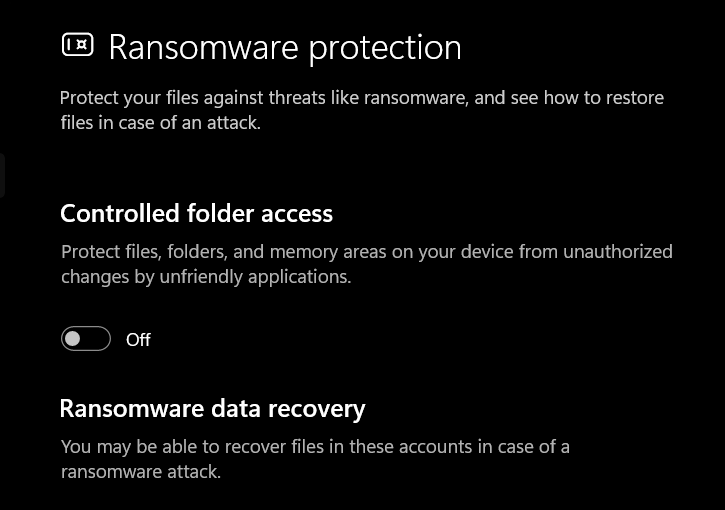 Ransomware protection, under Virus & threat protection. Note the “Ransomware data recovery” section underneath, which is Windows pointing you at OneDrive: useful, and precisely the assumption this guide is arguing with.
It is not limited to the obvious folders, either. Out of the box it covers the usual suspects (Documents, Pictures, Desktop, Videos, Music, Favourites), but under Protected folders you can add any path you like: C:\example, a projects directory, a second data drive, wherever you actually keep things. If your important work lives somewhere non-standard, add it, because the default list will not cover it and you will assume it does.
Be ready for it to annoy you, though. It is blunt, and it will block things you genuinely wanted, including Word trying to save a document. Allowing an app through, either once or permanently, is the intended workflow rather than a sign something is broken. Just keep the trade-off in view: every exception is another program ransomware could ride in on, so a long allow-list quietly gives back the protection you turned on.
The failure nobody plans for: sync that stopped syncing
Everything above assumes the sync is actually running. In practice the most common disappointment has nothing to do with ransomware: it is discovering that the client quietly stopped doing its job weeks ago, and that “it is in OneDrive” stopped being true long before anyone noticed.
Nothing announces this. The tray icon is small, its states are subtle, and a paused or errored client looks much like a working one at a glance.
It stalls for mundane reasons, most of which sound too boring to cause a disaster:
- The cloud quota is full, so there is nowhere to put new files.
- The local disk is nearly full. A few hundred megabytes free is enough to stall it.
- An expired session token, which is the single most common cause of a stuck queue.
- Sync paused automatically for battery saver or a metered connection, or paused manually for 2, 8 or 24 hours and never resumed.
- The account silently disconnected.
And sometimes the client itself is the problem. Anyone who has supported OneDrive or SharePoint sync at any scale knows the routine: the local database or cache gets into a state that no amount of patience resolves, and the only reliable fix is to tear it down and rebuild. Unlink the account and reset the client:
%localappdata%\Microsoft\OneDrive\onedrive.exe /resetThat path is the per-user install location, and in practice it often does nothing, because most machines now run the per-machine install instead. The command that usually works points at that copy:
"C:\Program Files\Microsoft OneDrive\OneDrive.exe" /resetEither way it drops every sync relationship and forces a full resync. Your files are not deleted by this, but on a large library the rebuild is slow and disruptive, which is its own argument for not discovering the problem at the worst possible moment.
Two consequences deserve spelling out, because they are the ones that actually hurt.
1. The backup that was never there. A disk fails, or a machine gets reloaded, wiped, or handed back at the end of a job. Everything created or changed since sync broke existed in exactly one place: the machine that has just been erased. The cloud copy is still sitting there looking healthy, which is arguably worse than an obviously missing backup, because it is convincing. This is the same trap as the rest of the guide, one step earlier: not “sync cannot protect me from that”, but “sync was not running at all”.
2. Collaboration divergence. Two people work on what they both believe is the same document. One is editing the live cloud copy; the other is editing a local copy on a machine that stopped syncing a fortnight ago. Neither sees the other’s work, and neither has any reason to suspect a problem. What surfaces later is not a merge but two genuinely divergent versions, plus a conflict copy, and somebody reconciling them by hand. A sync client’s conflict handling assumes sync is happening; when it is not, the divergence has weeks to grow before anyone finds it.
The habit worth building: treat “it is in OneDrive” as a claim to verify rather than assume, particularly before you wipe or reload a machine, and particularly before you hand one back. Glance at the client and confirm it is genuinely up to date, not merely present.
The vendors are not helping (but they are not all guilty)
Part of why this debate is such a mess is that every provider ships something called “backup”, and the quality of that naming varies enormously. It is worth going through them, because the differences are real and they change what you should trust.
OneDrive’s “PC folder backup” is the worst offender. Known in enterprise documentation as Known Folder Move, it presents itself as backing up your Desktop, Documents and Pictures. What it actually does is relocate them: the folders’ real home becomes OneDrive, and the local path is a synced copy. That is not a backup, it is a move, and it leaves you with one logical copy where you thought you had two. It is also frequently enabled during Windows setup with the opt-out buried, which is why people regularly report finding their folders redirected after declining the prompt. If you take one thing from this section, take this one.
Dropbox Backup is a genuine, separate product. This surprises people who assume it is sync with a marketing hat on. It is a one-way continuous copy of chosen folders (Desktop, Documents, Downloads) and even external drives, with a guided restore onto a new machine. One-way is the important word: it does not push deletions back at you. Dropbox sells both sync and backup, and they behave differently, so which one you are using matters.
Google Photos’ “back up” is, awkwardly for the slogan, accurate. Google’s own support documentation draws the distinction explicitly and correctly: with sync, deleting a photo from your phone deletes it everywhere; with backup, the copy stays in Google Photos after you remove it from the device. Photos genuinely does the latter. So the Android prompt that says “back up your photos and videos” is not lying to you.
Google One device backup has a trap in the small print, though. If a device goes unused for 57 days, the backed-up data for it (app data, settings, and so on, though not photos and videos) is deleted. A backup with an expiry date triggered by inactivity is not what most people picture.
The lesson is not “vendors lie.” It is that the word “backup” on a button tells you nothing, and you have to ask the only question that matters: if I delete this file here, does the other copy go away? If yes, it is sync regardless of the label.
Does version history count as a backup?
This is the genuinely contested part, and it deserves a real answer rather than a slogan.
First, the actual retention windows
| Service | Version history | Deleted-file window |
|---|---|---|
| Dropbox Basic, Plus, Family | 30 days | 30 days |
| Dropbox Professional, Essentials, Business, Standard | 180 days | 180 days |
| Dropbox Business Plus, Advanced, Enterprise | 365 days | 365 days |
| Google Drive | 30 days on most file types, capped at 100 versions | 30 days in Trash |
| OneDrive personal | Last 25 versions, kept 30 days | 30-day recycle bin |
| OneDrive work or school | Governed by tenant policy | Up to 93 days |
The case that versioning is good enough
Against the ransomware most people actually meet, which encrypts files in place and moves on, version history works. The clean copies are still there, one version back. OneDrive adds ransomware detection that notices the mass-modification pattern, emails you, and walks you through Files Restore, which rolls the whole account back to a point in time rather than making you fix files one at a time. Dropbox Rewind does the same job. People really do recover this way.
There is a sharper version of this argument, and it deserves stating properly because it is the one purists tend to skip. An automatic imperfect backup beats a perfect one nobody runs. Sync happens continuously, without discipline, on every device, forever. The unplugged external drive that is theoretically superior only helps if someone actually plugs it in, and the honest truth about home backup drives is that many are last written to months ago. Telling someone “Dropbox is not a backup” quite often results in them doing nothing at all, when Dropbox alone would have saved them in the overwhelming majority of realistic scenarios: a dropped laptop, a stolen bag, a deleted folder, a commodity encryptor.
It is also fair to note that the documented history-destroying attacks below involve an adversary with access to your account, which is a targeted intrusion rather than the drive-by malware most home users will ever meet. If your threat model is “I might spill coffee on this”, version history is a reasonable answer.
The case that it is not
Version history can be deliberately destroyed. This is the finding that settles the question, and it is documented rather than hypothetical. Proofpoint disclosed an attack chain against SharePoint and OneDrive with two variants:
- Abuse the version limit. The number of versions a library retains is a user-configurable setting that a site owner can change without administrator privileges. Reduce it to 1, then encrypt each file twice, and every clean version has been aged out by the system’s own rules.
- Skip versioning entirely. Delete the original file, empty the recycle bin, then upload the encrypted file into the same location. It arrives as a brand new file with no history behind it.
Microsoft’s own guidance concedes the shape of this: versioning does not protect against ransomware that copies, encrypts, and then deletes the originals. Researchers at SafeBreach went further and demonstrated turning the OneDrive client itself into the ransomware, using a trusted, signed process to do the damage.
The clock starts at the change, not at the discovery. A file quietly corrupted in March is unrecoverable in May, and you never knew to look. Ransomware operators know this too: slow-encryption strains encrypt gradually over weeks precisely so the clean versions age out before anyone notices, and dormant strains sit past the 30-day window before firing.
Retention can be shorter than advertised. OneDrive starts clearing the oldest recycle-bin items early when an account nears its storage limit, sometimes within days. The advertised window is a ceiling, not a promise.
It is file recovery, not disaster recovery. Files Restore brings back documents. It does not bring back a machine, and it needs a human to notice, decide, and drive it.
Where this guide lands, and when to disagree with it
Weighing both: version history is a real mitigation rather than a backup, and the property that separates the two is immutability, not versioning.
The test is one question. A backup is a copy that something you do not control cannot delete. Sync version history does not pass it, because it lives inside the same account, under the same credentials, governed by settings the account holder (or whoever has stolen their session) can change. Ransomware holding your token holds your history too. An external drive unplugged in a drawer, or an append-only bucket with a retention lock, does not care. That is why the industry answer to ransomware became immutable storage rather than “keep more versions”: versions are a safety net, immutability is a floor.
But the strength of that conclusion should scale with what you are protecting, and it is worth saying plainly where the other side wins:
- If your data is replaceable or low-stakes, sync plus version history is a defensible stopping point, and the effort is better spent on MFA than on a backup rota.
- If the realistic alternative is nothing at all, take the sync. Perfectionism that ends in no backup is worse than an imperfect one that runs by itself.
- If the data is irreplaceable (photographs, business records, anything you would grieve), the argument tips hard the other way, because the failure mode is permanent and the fix costs about the price of one external drive.
So the disagreement is less about the technical facts, which are not really in dispute, than about how much risk is worth carrying for how much convenience. This guide’s answer is “one immutable copy, and then relax about it”, but a reader who lands somewhere else for good reasons is not making a mistake.
So what should you actually do?
Keep using sync. It is genuinely useful, it covers hardware loss properly, and for most people it is doing a real job. Just add one copy that sync cannot reach.
- Get one copy that is offline or immutable. An external drive that spends most of its life unplugged is the cheapest effective answer, precisely because ransomware and a stolen password cannot reach a disconnected disk. On a Mac, Time Machine to an external drive already does this.
- Then encrypt that drive. An offline backup does not remove risk so much as trade it: you now own a single portable object containing everything, which is precisely what makes it worth stealing, and it spends its life in a drawer rather than behind your login. Encrypt it and a lost or stolen backup drive becomes an inconvenience instead of a breach. Watch the Windows edition trap here: Home cannot create BitLocker To Go volumes. It will happily unlock a drive that was encrypted elsewhere, but to encrypt one yourself you need Pro, access to a Pro machine, or a third-party tool such as VeraCrypt. macOS offers encryption as a checkbox when you first set up a Time Machine drive.
- Or use a backup service, not a sync service. Tools like restic, Backblaze, Duplicati and Arq keep versioned, independent copies with their own retention, and support append-only or immutable targets that a compromised client cannot purge.
- Check what your “backup” button actually does. Ask the one question: if I delete the file here, does the other copy survive? On OneDrive’s PC folder backup the answer is no. On Dropbox Backup and Google Photos it is yes.
- Turn on MFA for the sync account. Account compromise takes the mirror and the version history in one go.
- Test a restore. Pick a file from three months ago and recover it. A backup you have never restored from is a hypothesis, and this is the fastest way to find out your window is shorter than you assumed.
- Do not point your backup tool at your sync folder. It feels efficient and defeats the purpose: one copy of your data wearing two hats, and both hats come off together.
The short version
Sync gives you an off-site copy of the current state of your files, which covers hardware loss properly and is worth having for that alone. It does not give you isolation or immutability, so deletion, corruption, ransomware and a stolen password all replicate straight to the cloud by design. Version history genuinely rescues you from ordinary ransomware and your own mistakes, and defenders of sync are right that an automatic safety net beats a manual one nobody maintains. Against that: it lives inside the account it is protecting, it expires, and there is a documented attack chain that deletes it. Both positions are arguable, and where you land should follow how replaceable your data is. If it is irreplaceable, add one copy that is offline or immutable, and restore from it once so you know it works.
Related
- System rollback is not a backup: the same trap, one layer in
- Microsoft 365 backup: why Microsoft does not back up your data
- Cloud sync on Linux: OneDrive, Dropbox, rclone and native clients
- Full-disk encryption: locking down the offline backup drive you just bought
- Antivirus vs EDR: what actually stops ransomware
- Phishing-resistant MFA
- Backing up a MacBook: Time Machine’s local snapshots explained
Written by Tom Langston, IT Infrastructure and Cybersecurity.