Antivirus vs EDR: What Home Users and Businesses Actually Need
TL;DR
There are two very different answers here depending on who you are, so this guide is split in two: home users first, businesses below.
- Home users: you almost certainly do not need to pay for antivirus. A locked-down standard account plus Windows Defender with its extra protections turned on is genuinely enough. The pricey “security suites” shops push are mostly a waste, and often just slow your machine down.
- Businesses: the bar is higher. Plain antivirus is table stakes; you need EDR (detection and response) across Windows, Mac, and Linux, and, crucially, someone actually watching it. EDR with nobody responding is just expensive noise.
- The single biggest wins on any home PC: fewer admin rights, install as little as possible, turn on the built-in hardening features, and encrypt the drive (and save the recovery key somewhere safe).
(If you run or support a business, skip straight to the For business users section below.)
Now for the more technical explanation
For home users
Do you need to pay for antivirus?
Let me say the quiet part loudly: on a modern Windows PC, Microsoft Defender is all the antivirus most people need, and it is free and already there.
It is worth appreciating how far this has come. Defender started life as an anti-spyware tool, and only became a proper antivirus when Microsoft folded Security Essentials into it in Windows 8. Both were, back in the day, frankly a bit of a joke: they sat near the bottom of every detection test. Today, Microsoft Defender consistently scores at or near the top of the independent AV comparatives, alongside the big paid names. The default, free, built-in option went from punchline to genuinely excellent. Most people never got the memo.
The shop upsell you should walk away from
Here is where I get grumpy. When I worked as a bench tech at a big electronics chain, I watched salespeople talk people into a ten-device antivirus licence for over $600 when the customer owned a single phone. The product cost the store around fifty-odd dollars; the rest was margin and a personal commission for the person selling it. It was fear dressed up as protection, and it still makes my blood boil.
So, plainly: the heavyweight consumer “security suites” (Norton being the classic example) are, for most home users, unnecessary, overpriced, and heavy. A few things worth knowing:
- The only part you often actually benefit from is the bundled VPN, and those bundled VPNs are usually mediocre. If you want a VPN, get a proper purpose-built one (see the VPN guide), do not buy a bloated suite to get an average VPN thrown in.
- They also upsell “dark web monitoring” as a premium scare feature. News flash: haveibeenpwned.com does the essential part for free, and will even email you if your address turns up in a new breach. See the dark web monitoring guide for what it really is and what, if anything, the paid version adds.
- Third-party AV has a real performance cost: CPU load, RAM use, and on laptops, battery drain. You are paying money to make your machine slower.
- Watch your device architecture (ARM/Snapdragon). This one has moved fast, so here is the accurate picture. Most of the big names (Defender, Malwarebytes, Bitdefender, Norton, ESET) now ship native ARM64 builds, so “antivirus does not work on ARM” is out of date. But there is a catch that is specific to security software: antivirus relies on kernel-level drivers, and Windows on ARM cannot emulate those. So unlike an ordinary app, an antivirus without a genuine ARM64 build does not just “run slower in x86 mode”, its real-time protection will not load at all (it can install and look fine while actually protecting nothing). On ARM the rule is therefore native or nothing: confirm the product explicitly supports ARM64, and do not assume x86 emulation will save you the way it does for normal apps. Defender is built in and native, so it sidesteps the whole question. (I still avoid running ordinary x86-emulated apps on ARM where I can, for the battery and performance cost, see the x86 vs ARM guide.)
The setup I’d recommend: Defender with every feature enabled, and if you need a VPN, a separate, purpose-built VPN, never a bundled one.
The best security habit: install less
Here is the principle underneath all of this, and almost nobody frames it as security: install as little software as possible. It applies to every operating system, Windows, Mac, and Linux alike. Every program you install is more attack surface: more code that can carry a vulnerability, more background processes running, and one more thing you have to keep patched. The goal on any computer should be the minimum set of software you genuinely need, and nothing else.
Third-party antivirus is the perfect example. It is an extra, deeply privileged install that, for most people, adds risk and overhead without adding protection Defender does not already provide. The same logic applies to VPNs: most people do not need one running at all, so it is not something to install by default. (When you genuinely do need one, that is its own decision, see the VPN guide.)
Fewer installs means a smaller attack surface, less to patch, and a faster machine. Before you install anything, the honest question is simply: “do I actually need this?” That question is a security control.
Where you get your software matters
Most infections walk in through the front door, in the installer you downloaded. So:
- Prefer the Microsoft Store where you can: signed, vetted, and updated for you. Do not assume everything in it is sandboxed, though. Plenty of Store listings are ordinary desktop apps in a Store wrapper, and those run with the same access as anything else you install. The signing and the automatic updating are the real win.
- For serious software that is not in the Store, only download the big, well-established brands, and only from the genuine official site.
- Never use third-party “download portals” (FileHippo, Softonic, CNET Download, and the like). They wrap installers in junk, adware, and worse. The legitimate source is always the vendor’s own site.
Step one: stop running as administrator
Before any settings, the highest-value change is boring: use a standard (non-admin) account for daily use. Most malware can only do its worst if it runs with admin rights. A standard account means a dodgy program has to ask (and you get to say no), which stops a huge amount of damage before it starts.
Turn these built-in protections on
Modern Windows ships with a stack of genuinely good protections, and some are not on by default. Open Windows Security and switch these on. Most of them live under Device security, a click or two deep, and are shown below.
- App & browser control (SmartScreen). Windows Security → App & browser control. This checks apps and downloads against Microsoft’s reputation data and warns you off dodgy files and sites.
- Smart App Control. A newer, separate Windows 11 feature (do not confuse it with App & browser control above) that blocks untrusted and unsigned apps outright, stricter than SmartScreen. It behaves unusually: on a fresh install it starts in Evaluation mode, where it quietly watches how you use the machine to decide whether it can protect you without getting in your way, and then it turns itself on (or, if it would cause too much friction, off). The catch worth knowing: it only works from a clean install, and once it is off you cannot simply switch it back on, that needs a Windows reset. So if it evaluated and turned itself on, leave it on.
- Core isolation → Memory integrity. Windows Security → Device security → Core isolation. Uses virtualisation to wall off the security-critical part of Windows so malware cannot tamper with it.
- Kernel-mode hardware-enforced stack protection. Same Core isolation page. Hardware-backed defence against a common class of exploit. Turn it on if your hardware supports it.
- Local Security Authority (LSA) protection. Also under Core isolation. Stops malware stealing the credentials and tokens held by the part of Windows that handles sign-in. This is a big one against credential theft.
- Microsoft vulnerable driver blocklist. Same page. Blocks known-bad and abusable drivers that attackers use to get into the kernel. Leave it on.
- Secure Boot should already be on. Windows Security → Device security will tell you. If it is off, turn it on in your UEFI/BIOS (your computer’s firmware settings), it ensures only trusted, signed code runs at boot. (There is a whole saga around Secure Boot certificates worth knowing about.)
Smart App Control shows its three states (On, Evaluation, Off) on its own page:
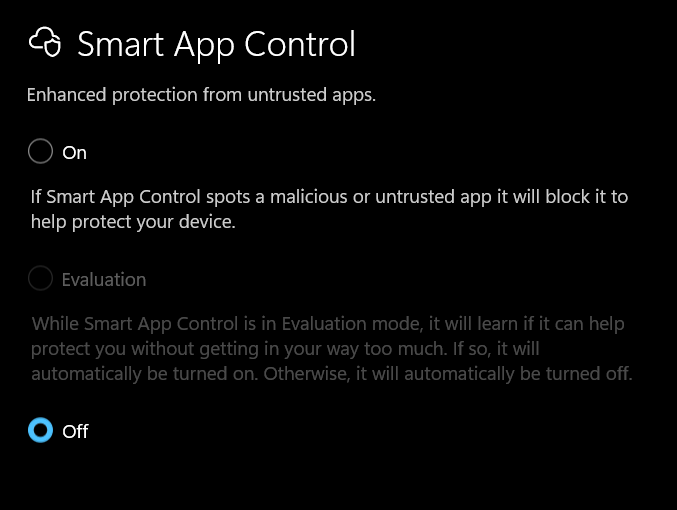 Smart App Control runs an Evaluation phase first, then usually turns itself on. Once it is off, re-enabling it needs a Windows reset.
The Device security page is the hub for most of the rest. It shows Core isolation, your security processor (the TPM, or trusted platform module), Secure Boot, and drive encryption in one place:
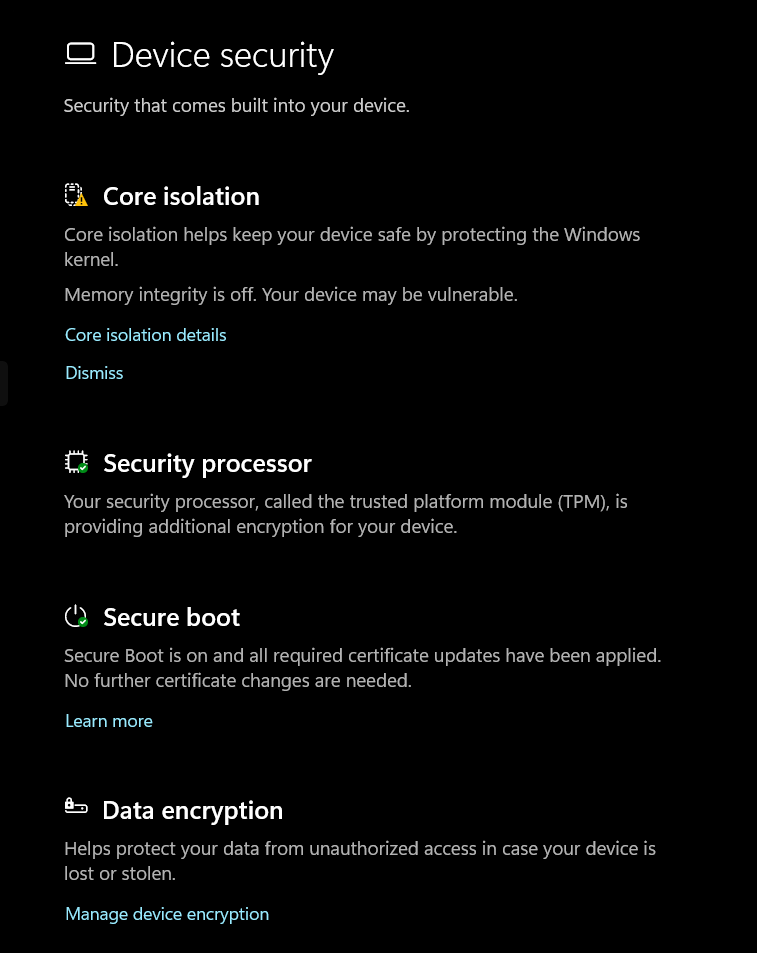 Windows Security, then Device security: the hub for most of these settings.
Open Core isolation details for the individual toggles. A couple are off by default; turn them on if your hardware supports them:
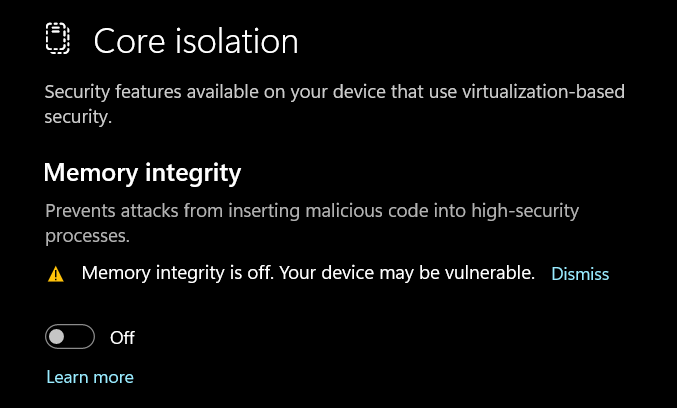 Memory integrity: often off by default, turn it on.
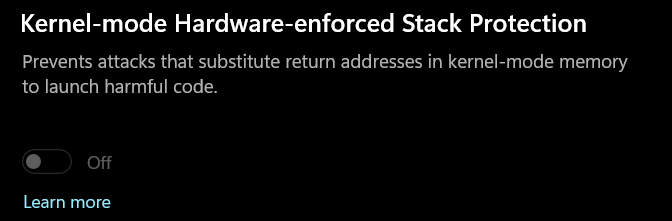 Kernel-mode hardware-enforced stack protection.
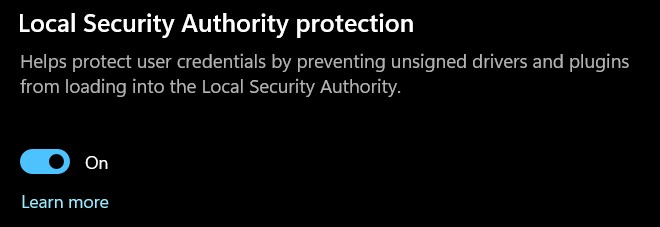 Local Security Authority (LSA) protection: guards your sign-in credentials.
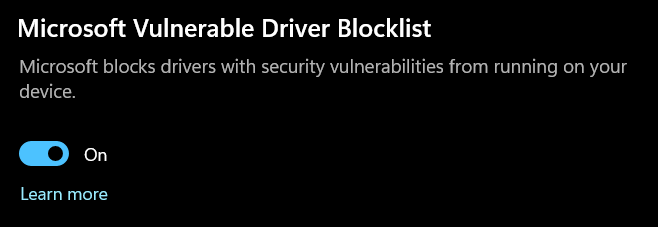 Microsoft vulnerable driver blocklist: leave this on.
Encrypt your drive (and guard the recovery key with your life)
If your laptop is lost or stolen and the drive is not encrypted, whoever finds it can read everything. Turn on drive encryption. A couple of Windows-specific wrinkles:
- On Windows Home, device encryption generally requires you to sign in with a (free) Microsoft account, because that is where the recovery key gets backed up.
- On Windows Pro, you can enable BitLocker with a local account, but then key storage is entirely on you.
- Either way, the recovery key is the whole ballgame. Lose it after a hardware or firmware change and your data is gone, permanently. Back it up: to your Microsoft account, printed, or in your password manager. This is “lose your data forever” important. (More on this in the full-disk encryption guide.)
Ransomware protection: handy, occasionally nagging
Windows has a Ransomware protection feature (Controlled Folder Access, under Virus & threat protection). It stops untrusted programs from modifying files in your protected folders, which is exactly what ransomware tries to do.
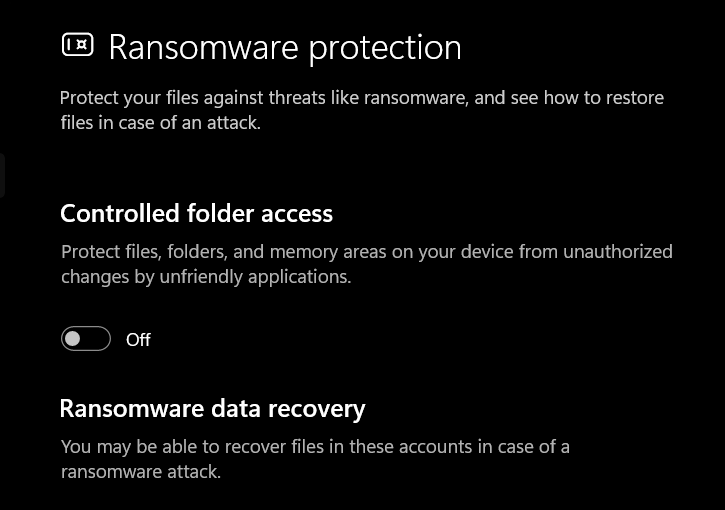 Ransomware protection, under Virus & threat protection. Controlled folder access is off by default.
It genuinely works, but be warned: it can be annoying. Legitimate apps sometimes get blocked because Windows cannot tell “you saving a document” from “malware encrypting it”, so Word saving to a protected folder, or a browser trying to save a download, can get stopped. When that happens, you go into the setting and allow that specific app through. Slightly fiddly, but worth it for the protection.
One caveat: Controlled Folder Access helps, but the genuine last line of defence against ransomware is a good backup, one that is independent enough that malware cannot reach and encrypt it too.
Home users, the short version
You do not need to buy antivirus. Run as a standard user, keep Defender on with all its extra protections enabled, encrypt your drive and protect the recovery key, get software from the Store or genuine vendor sites, and skip the overpriced suites, if you want a VPN, buy a real one separately.
For business users
(Everything below steps up from “protect one PC” to “protect a fleet you are accountable for.”)
Antivirus is table stakes. EDR is the baseline.
For a business, “we have antivirus” is not a security posture, it is 2005. Traditional AV mostly matches known signatures, and modern attacks are built specifically to slip past that. The baseline for any business now is EDR (Endpoint Detection and Response), and the important word is the last one.
EDR is not just “better antivirus.” It continuously records what is actually happening on every endpoint (processes, network connections, file and registry changes), spots behaviour that looks like an attack rather than a matching signature, and lets you respond: isolate a machine from the network, kill a process, and investigate with real forensic timeline data. That telemetry and response capability is the entire point.
The bit everyone skips: the “R” needs a human
Here is the hill worth dying on. EDR with nobody watching it is theatre. The tool generates detections; if no one is triaging and responding to them, around the clock, you have bought an expensive dashboard that logs your own breach for later reading.
This is why MDR (Managed Detection and Response), EDR plus an actual staffed team (yours or an outsourced SOC) watching and acting 24/7, is what most businesses genuinely need. Deciding factor for a small business is rarely “which EDR product”; it is “who is going to respond at 2am?” Answer that first.
Is Defender enough for business too?
Often, yes, with a caveat. Microsoft Defender Antivirus (the engine) is already excellent, so ripping it out for a third-party AV rarely buys you anything. What a business is really buying is the EDR and management layer on top:
- Microsoft Defender for Endpoint (MDE), the paid tiers (P1 and the fuller P2), turns that same good AV into a managed EDR platform with threat hunting, automated investigation, and response. If you are already on Microsoft 365 Business Premium or E3/E5, a lot of this is licensing you may already own.
- Third-party EDR/XDR (XDR is extended detection and response: the same idea widened beyond endpoints; SentinelOne and others) are strong, especially where you want a single console across a very mixed estate, or a vendor whose whole job is this. Just do not run two EDR/AV agents fighting each other on the same box; pick one.
The honest framing: the AV underneath is a solved problem. Spend your decision energy on EDR + response + management, not on the antivirus brand.
Cross-platform: Windows, Mac, and Linux all need it
This is where businesses have blind spots. Endpoint protection is not a Windows-only conversation.
- Windows. The mature case: MDE or a third-party EDR, deployed and enforced by policy (via Intune), with the same hardening from the home section (memory integrity, LSA protection, the driver blocklist, encryption) pushed out as a baseline rather than left to users.
- Mac. Kill the myth first: Macs get malware, and increasingly are targeted (info-stealers especially). Amusingly, Apple itself quietly conceded this: it used to boast on its website that a Mac “doesn’t get PC viruses”, then, after the 2012 Flashback trojan infected around 600,000 Macs, it swapped that line for the far more careful “built to be safe”. The built-in XProtect/Gatekeeper is basic hygiene, not EDR, no fleet-wide detection, hunting, or response. Business Macs need real EDR (MDE for Mac, or a Mac-focused tool like Jamf Protect) managed alongside the Windows fleet.
- Linux. The forgotten estate, and it is usually your servers, the highest-value targets. Linux boxes get cryptominers, rootkits, and web-facing exploits, and “it’s Linux, it’s fine” is how they stay compromised for months. EDR runs on Linux too (MDE for Linux, and the third-party agents), and your internet-facing Linux servers are exactly where you want that telemetry.
Business, the short version
AV is assumed; EDR is the baseline, and EDR without someone responding is pointless, so sort out MDR/response before you shop for products. Defender’s AV is already strong, so you are really buying the EDR + management layer (MDE is often already in your licensing). And cover every OS: Windows, Mac, and the Linux servers everyone forgets.
Related
- Do you actually need a VPN?
- The Secure Boot certificate saga, and why it matters
- Full-disk encryption and protecting your recovery key
- Phishing-resistant MFA and Conditional Access baseline policies for the managed fleet
Written by Tom Langston, IT Infrastructure and Cybersecurity.